A Beginner’s Guide to Streaming Video Services

When we did a short guide of streaming media devices a couple months ago, we omitted an important detail: where to get your streaming media. Streaming media is not quite there in terms of breadth and depth of selection (right now, the only way to watch anything is a Netflix DVD subscription, but getting DVDs in the mail seems so 2002). Navigating the streaming video waters–which service to use, how to search, etc–can be challenging for the uninitiated.

We’re not exactly experts about streaming video (aka video on demand), but we watch enough of it to give an overview of what’s out there and lend a few pointers for the streaming newbie.

Netflix

The original video store killer’s streaming service accounts for up to 1/3 of all internet traffic in the United States during peak hours (9pm to 12am). Did you hear that? 1/3!!! So we know we’re not the only ones digging through old episodes of “Parks and Rec.”

Netflix has a great user interface. At $7.99/month for unlimited content, it’s a bargain, and there are a ton of great movies and TV shows available. Definitely a top choice for streaming media.

But once you rip through those great movies and TV shows (at a rate you wouldn’t confess to your Thomas Pynchon loving friends) you are left with a seldom updated “new release” selection and a sea of studio duds. Sifting through them can be a chore.

What to do: Check out Rotten Tomatoes Netflix Streaming section. It’ll give the Tomatometer rating (a number that shows the percentage of favorable reviews) for every movie on Netflix streaming. We find some of the ratings are a bit generous (we typically like movies that are 85% and higher), but it’s a good place to start when you’re looking for a decent title. Also check out IMDB’s ranking of Netflix TV shows.

Amazon

Amazon is definitely trying to cut in on Netflix’s business with its free Prime movies and TV shows. For $79/year (a few bucks less than Netflix annually), you get a healthy selection of streaming video (much of it is the same stuff that’s on Netflix). But wait, there’s more! You also get Prime’s free two day shipping on Amazon goods; these goods, at least in our area, usually come next day and this $79 easily pays for itself.

The bummer with Amazon is its user-interface. Unlike Netflix, Amazon is a bramble of titles and category lists in which its great value gets lost. It also lacks Netflix’s original content, which, though not plentiful just yet, is pretty great, and popular shows like Mad Men and Breaking Bad aren’t there for free either.

Use it for: If you’re trying to save money and are a moderate streamer, Amazon Prime is a viable contender to replace Netflix.

We use it primarily for purchasing titles not available on Netflix streaming. They have most new releases; movies and TV shows start at $1.99, with first run movies costing around $3.99 for a 48 hour rental. If you’re only buying a few movies or shows a month, the additional expense isn’t a big deal (movie theater tickets are $13.50 in NYC, so it seems like a bargain to us).

Amazon is great for people who watch movies on their computers. The browser based standard definition viewer works well enough for small screens and the non-discriminating eye (i.e. most of us). It works on many devices like Kindle Fires, Xbox, Roku and others. You cannot, however, watch Amazon streaming through Apple TV, and their iPad app kinda stinks.

Since Amazon’s search functionality is a bit clunky, the Rotten Tomatoes DVD category can be helpful to find good movies to watch. RT’s reviews include direct links to Amazon as well as other video on demand services.

iTunes

Unlike aforementioned services, iTunes has no unlimited streaming service and it must be launched through their app. Searching is not so easy either. In other words, it’s not as cool as it was in 2001.

Use it for: If you have an Apple TV, iTunes will allow you to rent streaming movies (Apple TV does permit Netflix streaming). Rental prices are comparable to Amazon, their library is pretty deep and they get all of the new releases. If you buy a movie, you can access it on any device you authorize your account for (however, you can access an Amazon library by logging into your account on any computer). You can also watch TV shows and movies in HD on your computer.

Hulu Plus, Voddler and Vudu

Honestly, we don’t have much experience with these services. We used to use Hulu when it free, but at a certain point you need to choose one service and stick with it.

From what we can tell, Voddler and Vudu allow you to upload your own videos to create a cloud-based library. Vudu allows you to upload your DVDs in standard or high def. Voddler allows peer-to-peer video sharing. If you have experience with these or other services, let us know in our comments section.

Girl looks at Computer Image via Shutterstock

Lose Your Keys Forever

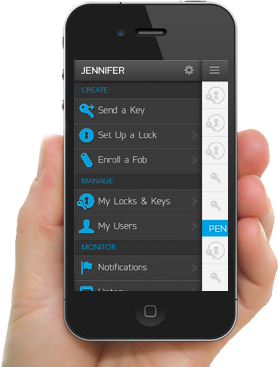
A system called Kevo by Kwikset might have the power to free the world from the scourge of sharp-toothed keys forever. The system is similar to proximal automotive systems that open doors and allow you to start a car with a remote fob. Instead of a fob, Kevo uses your iPhone to open the door; just stand near the door (you don’t even need to take the phone out of your pocket), touch the lock with your finger and enter.

kevo-smartphone

One of the most useful features is that Kevo lets you lend your keys remotely. You can send your virtual keys to a houseguest, neighbors or contractor via your phone instantly. Other features include:

  • Military grade PKI encryption to prevent hacking into phone (we’re assuming that’s a good level of encryption).
  • Automatic deactivation once you’re in the house, so someone can’t open the door while you’re at home.
  • If you lose your phone, you can log into the Kevo app via someone else’s phone to open your door. You can also log into their web portal to disable key on your lost phone.
  • Multiple low battery warnings. Its four AA batteries are said to last about a year.
  • Standard slot for normal key.

For it’s first release, Kevo is only supported on the iPhone 4S and 5, though we imagine that will change. For non-iPhoners, there is either the standard key or a fob (one is included with purchase) that acts the same thing as the phone.

We do wonder whether Kevo will be like radio/showerhead, where in a few years, when new phones are totally incompatible with the lock, you have this weird lock surrounded by a bunch of LEDs. Then again, having a key-free existence is mighty tempting, as is being able to lend keys to people from anywhere in the world that has wifi. Also, since Kevo works off of Bluetooth, there’s a good chance that the system will be technologically relevant for a good while.

According to Mashable, Kevo will be taking pre-orders in June and shipping later in summer. The price will be around $249.

Update: Kevo is now available for $219 at several retailers

Edit Your Monthly Bill Costs with BillCutterz

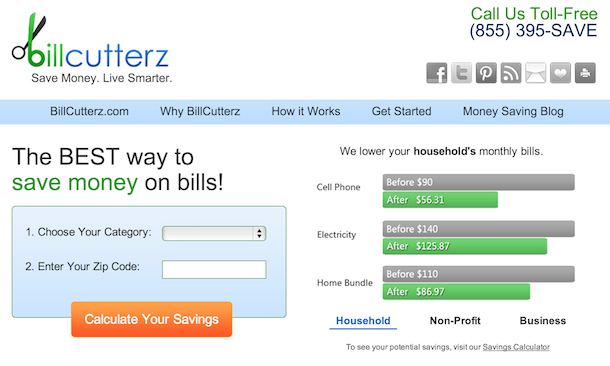
Many of us are aware that we can save money on our bills. We know we pay too much for cable or car insurance, we maintain our cell phone plan even though it’s not the best deal or we stick with our default electricity provider rather than looking for the one who will save us dough. We don’t bother changing because the hassle tax–i.e. the effort involved with changing our plans and policies–seems greater than the savings. A service called BillCutterz is like your hassle tax accountant, navigating the murky waters of plans, policies and promotions so you can save hundreds or even thousands of dollars a year on your bills.

The way it works is you send them all of your regular bills: Insurance, electricity, gas, cell phone, landline, cable, internet and even house payments. They act as your agent in negotiating the best deals possible with the providers, who often have promotions, plans and loopholes that are too much of a headache for most of us to keep track of. The savings will show up on your regular bill.

BillCutterz has an extensive security system in place. They stay in business by taking half of your savings; e.g. if they save you $600/year, they take $300. They will not take any money if they don’t save you any. You can also pay upfront for the year based on projected savings and save an additional 10%.

The service is a bit of a no-brainer. Even though the 50% charge is considerable, it’s money that wouldn’t exist without the service. Face it, you probably don’t have the patience or skill to do what they do. And it even works if all you have is a few small bills.

An important part of editing your life is making the systems in our life run as efficiently as possible. Seeing as most of us have bills, why not spend as little as possible paying them? www.billcutterz.com

This Mouse Eats Your Paper Clutter Whole

Okay, we’ve talked about the limitations of multifunctional design, but we have to say the IRIScan Mouse Scanner is a pretty cool and logical combo. All you do is wave the mouse over your doc and their software pieces together the swipes. When you’ve scanned the doc, you can crop the scanned image to the appropriate dimensions. Its 300 dpi resolution might be wanting for artists and designers, but for the vast majority of people who just want to scan important documents, it’s more than sufficient. At $79, it’s a good deal considering it replaces a mouse (not that you needed to replace yours, mind you) and scanner, and cuts down on bulk.

One not-so-little issue we saw with the IRIScan: It only works on Windows. We did a little searching and found the LG LSM-100, which handles both Windows and Mac, and boasts 1200 dpi scans. We saw it on Amazon for $95 (there were a few negative reviews on Amazon, but that always seems to the case no matter the product).

lg-lsm-100

Both IRIScan and the LG LSM-100 feature Optical Character Recognition (OCR) technology which recognizes text characters in 180 languages and optimizes the scans.

Few things cut clutter quicker than digitizing your documents. The only more compact solution we’ve seen are mobile device scanner apps. These mice are a great option if you want higher image quality without much extra equipment.

Optimize Your Emailing with Keyboard Shortcuts

Many of us spend a good portion of our days dealing with email. Whether we relish or loathe the task, we can all agree that it makes sense to figure out how to do go through your inbox as efficiently as possible. We’ve looked at ways of optimizing your Gmail account, but today we’re looking at something a bit more basic: The keyboard shortcut.

Every on and offline mail service (Gmail, Yahoo, Hotmail, Outlook, Apple Mail etc.) has them, but many of us don’t use them. Just like when you discovered ctrl/Apple + c, v and x (you have discovered those, right?), a little know how can result in a ton of time saved over the years.

Rather than cover every mail service, we’re going to give a few keyboard shortcuts for Gmail, which is still the mail service of choice for the majority of us. (We’ve put links to other mail services below).

  • Enable keyboard shortcuts on Gmail by going to settings (the little gear in upper right corner). On the “General” tab, scroll down to “Keyboard shortcuts”. Turn keyboard shortcuts on and save settings at bottom of screen.
  • Shift + c to compose message in new window.
  • / puts your cursor in search box. This is especially useful for those of us who keep documents in our inbox.
  • Shift + c to reply. Shift + a to reply all.
  • Shift + 3 to delete a message.
  • gi Takes you to your inbox.
  • ? shows a keyboard shortcut cheatsheet.
  • Yahoo, Hotmail, AOLOutlook, Apple Mail (may vary between OS versions).

We like to say that the hours of our days are often lost in teaspoons, not gallons. While not revolutionary for many of us, sometimes mini timesavers like these keyboard shortcuts help us do the things we’re doing faster so we can get on to more important things.

What simple but important email timesavers do you use? Let us know in our comments section.

image credit Shutterstock.com

20 Million Songs for $10 (a Month)

In the coming months, we will be highlighting products and services we use in the LifeEdited apartment. Today, we’re looking at the streaming music service Spotify

Do you remember going to the CD store (or for some, the record store)? You’d rifle through the aisles and their indexed rows, peering at the tall, half-empty cardboard boxes, squinting to see which album was in front of you; the more artistic bands wouldn’t say, so perhaps you’d have to unearth the album from a tight stack. Then you’d fork over $15-20 for the disk itself–and this was 10-20 years ago. Then you’d bring the disk home, listen to it, enjoy five of the twelve songs then store it on a CD tower or bulky wallet.

For most of us, the iPod ended the CD era. It enabled us to load tons of albums in something that fit in our pockets. No hard-to-open boxes, esoteric album covers, CD towers or filler songs. Slowly-but-surely, we built our music libraries via converting CDs, purchasing on iTunes (which at $10/album or $.99/song was still a lot cheaper than CDs) or downloading through shadier channels.

But the iPod still locked you into storing your MP3’s on a harddrive. We acquired gigs and gigs of music on our computers, hogging RAM and creating confusion when trying to trying to access music.

In keeping with the “access over ownership” ethos, we chose Spotify as the music purveyor at the LifeEdited apartment. Spotify is a web-based service that allows you to have streaming access to a catalog of 20 million songs. With a membership, you can sort, bookmark and make playlists with any music in the catalog. Should you choose, there’s a social aspect where you can see what your friends are listening to as well as recommendations from tastemakers.

Spotify is available in three versions: Free, unlimited and premium. Free is, well, free, but has ads and a ten hour limit for listening each month (sound quality is not-so-great in our experience). Unlimited is $5/month and allows you to access the full catalog on your laptop or desktop without time restrictions or ads. Premium–the service we use–is $10/month and gives access to any web-enabled device, has improved sound quality and allows offline listening to your playlists–an important feature if you’re trying to replace an iPod.

If this seems like a bit of money to pay for a service, consider most of us were okay buying twelve or more CDs or iTunes albums a year at $10-15 each. After collecting these albums over the course of a few years, we’d still have a collection that was a tiny fraction of what’s available on Spotify. We’d also have to manage the CDs themselves or the storage needs of the MP3s.

The biggest drawback to Spotify is portability. You can’t load it onto a normal iPod (you can use it with the web-enabled iPod touch). This is less and less an issue for most people, who use a normal iPod only for working out and whose phone is their main music device.

Spotify also takes pains to make sure only one person is listening to an account at a time. In other words, you and and your wife can’t listen to your premium account on two separate computers at the same time.

Audiofiles might find the sound quality lacking on Spotify and may choose to stick with CDs, high quality MP3s or even vinyl for that reason. However, for the great majority of music listeners Spotify works great and provides an immense library of new and old music without the hassle of storage.

Sign PDF’s, Ditch the Fax

Has anyone recently asked you to telegram a message because they want to make sure it gets to you safely? Perhaps a carrier pigeon or pony express? Of course not. But has someone asked you to send a signed document via fax machine? Probably so.

Different people have different tactics for getting around the Dodo-in-waiting that is the fax. For some, sending a fax involves printing the document, signing it, scanning that document, then sending that scanned version via email (you probably save the signed paper document “just in case,” creating more paper clutter). Or some of us keep an eFax number, so we can trick people into thinking the scanned PDF is coming from a real live fax machine…suckas! Except these numbers often cost us $10/month. Any way you spin it, this process is a pain that uses way too much time, paper, money and equipment–all to achieve a questionable level of security.

There are now many ways to sign PDF’s, Word Docs and any other signable document without scanning, paper, expense or hassle.

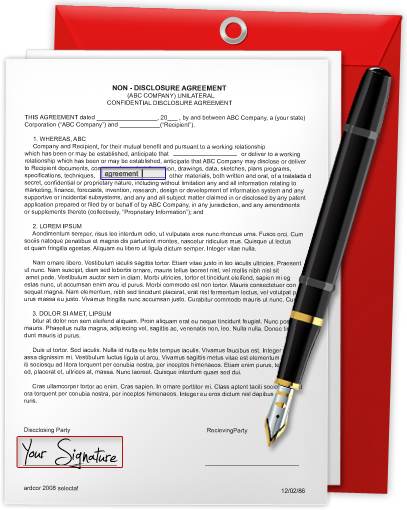
There are a number of fancy signers that create digitally encrypted signatures, many of which cost upwards of $15/month.  While these might be great for lawyers and mobsters who have some serious security issues, the LifeEdited team has been using the pretty budget PDF Signer app for a while now with great success. For $10, it allows your Mac to open any document and overlay your digital signature, which can either be made by scanning your signature or even taking a photograph. It also allows you to fill in boxes with standard text.

Options for other devices/operating systems:

  • LifeHacker recommends DocuSign Ink for iOS. This free app allows you to sign documents with your finger as well as fill in text.
  • For Android, there’s a highly rated app called Fill and Sign PDF Forms, which allows you to, um, fill and sign PDF forms ;-).
  • PD Fill works for PC’s and comes highly recommended by CNET. $19.99.

Get Ripped, Clear Clutter and Boogie Down

Many of us still lug around our CD collections despite the fact we stream our music or listen to MP3’s. We can’t bear to rid ourselves of these little mirrored disks that store music, memories and money. So we burrow them in the recesses of our closets or proudly display the jewelboxes in our living rooms–vestiges of days when visitors could size you up based on your Kraftwerk collection.

Though media storage is a valid form of decoration, the fact is most of us can carry our music library in our pockets nowadays. And while many of us have intentions galore for converting our CD collections into digital formats, the gap between intention and action is often a vast one.

Enter RipDigital. The service takes your old CD’s and converts them into one of three digital compression formats: 192kbps, 320kbps or Apple Lossless (ALAC) and FLAC formatting–basically good, great and audiophile qualities. Prices are $.99, $1.29 and $1.49 per disk respectively.

Send your CD’s to RipDigital and they will send the files back on a DVD or your device like an iPod or external harddrive. They also sell hardrives ($134-274) and iPods ($269-439).

If the prices sound high, consider that an iTunes song runs you around $.99. For a couple hundred bucks, you could convert a pretty sizable collection, adding tons of music you already like to your library as well as saving space and clearing clutter.

We realize that digitally compressed music, for some very discerning ears, doesn’t quite have the richness of CD’s (or vinyl, some would say). For these people–e.g. Gary Chang whose tiny house includes a wall of CD’s–keeping their CD’s and vinyl makes sense. The rest of us, who don’t do anything with our CD collections, we must concede that music that is not listened to has really low fidelity.

image via flickr/misterjt

Cut Paper Clutter and Future-Proof Documents

A thoughtful handwritten card is great, but most paper we deal with is just annoying, clogging filing drawers and neural pathways alike. Justin Klosky from OCD Experience gives tips how you can convert your paper clutter and create digital organization that will allow you to access documents for many years to come. 

Reduce Paper/Utilize Technology

If you have more than one filing drawer in your home and small business this applies to you!

It is time to O.C.D. (Organize & Create Discipline) and rid yourself of papers in your entire life. To prevent this tip from becoming pages of instructions, simply start going digital today. We won’t discuss the prior work you need to do, so if you don’t already have one, buy a scanner, an external hard drive and a paper shredder. It will be worth every penny.

Simply start scanning ANYTHING that you truly think you will need to reference again and shred the originals. Create a simple folder structure on your computer like you would a filing cabinet and utilize additional folders for each category you will be scanning documents for. Common folders will be: Business, Children, Health, Home, Insurance, Money/Taxes, Receipts, Resumes.

Lastly setup your external hard drive to back up your computer anytime a file has been altered and added. This will also prevent you from losing your data.

Organize: Gather all of your paper documents you want to take the time to digitize.

Create: Create a simple folder structure to store all of your digital files.

Discipline: Whenever a document comes in that needs to be scanned and filed make sure you do it daily, if not weekly. Never let something sit longer than a week or it will eventually become a chore!

Reduce Paper/Utilize Technology Tip: Only scan what you truly need in your life and shred the rest. This will eliminate paper pile ups and will allow you to live in a paperless world as effectively as possible. Keep all hard copies of certified documents.

What Do You Do with All Your Digital Photos?

Assuming you took our suggestions for digitizing your old photos, the question becomes what do you do with them? Digital photos easily scarf up multiple gigs of storage while remaining indefinitely un-viewed and un-printed.

Few of us have trouble taking digital photos, but we have few ways of viewing them aside from occasional glances on photo-sharing sites like Facebook, Picassa and Flickr.

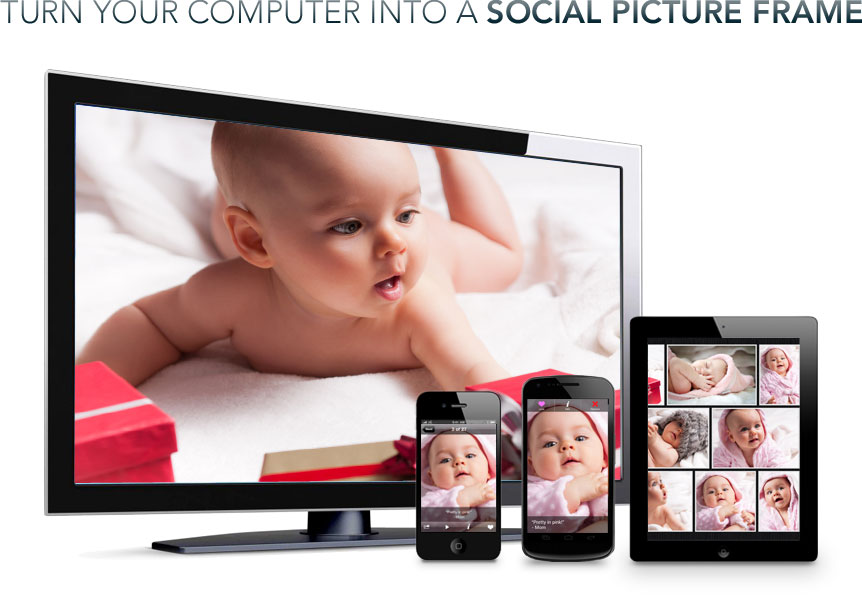
A new site called Familiar offers one way to get your photos off your hard-drive and into your line of vision, as well as providing a social forum forum for photo sharing.

What you do is sign up with a number of friends and family (guess you could do it with strangers, Chat Roulette-style). Familiar’s software allows you to share your photo albums or Facebook, Picassa, SmugMug and Flickr photostreams with people in your Familiar circle. The combined photos are then displayed as your screensaver of your computer monitor, iPad or Kindle Fire. You can even send photos instantly from your iPhone or Android.

While most computers can turn you screensaver into a slideshow, they don’t have the social aspect, which provides some novelty and a way of keeping in visual touch with you friends and family.

Of course, your computer has to be powered on, and computers don’t always make the best picture frames. That said, most of us keep our computers on standby much of the time and because Familiar is free and uses existing hardware,  a zero-investment, imperfect picture frame is far better than none.

If you have other suggestions for viewing digital photos, let us know.

via Netted by the Webbys